Every address plotted, with companionships and coverage gaps easy to spot.
🔎
Find who's unassigned
Instantly see who isn't serving and which households nobody visits.
✏️
Rearrange and export
Move people between companionships, then print a clean PDF with every change highlighted.
🔒We never store your data. Your directory and assignments are read on the fly and live only in your browser. The server only remembers street addresses as map coordinates, with no names attached.
How it works
Follow along from downloading your reports to handing leaders a finished PDF.
Part 1 · Get your files from Church records
Three PDFs. You only need to do this again when the assignments change.
1
Download the member list
Sign in to Leader and Clerk Resources with your Church account. You need clerk or leader access; ask your ward or stake clerk if the menus below are missing.
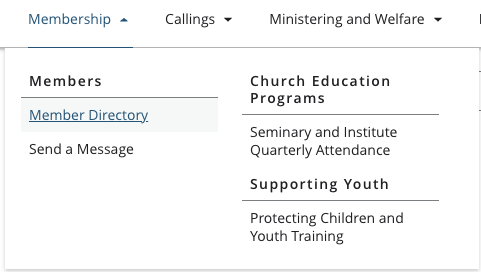
Open Membership → Member Directory.
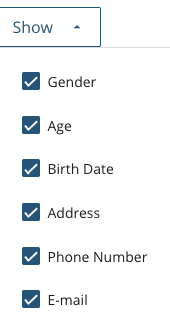
Click Show and make sure every box is checked, especially Address.
Click Print and choose Save as PDF. Name it something like member_list.pdf.
Important: Without the Address column the tool can't put anyone on the map. It will tell you if the column is missing.
Membership → Member DirectoryShow: check every box, including Address
2
Download the Elders Quorum ministering report
This is the report with each companionship and the households they visit.
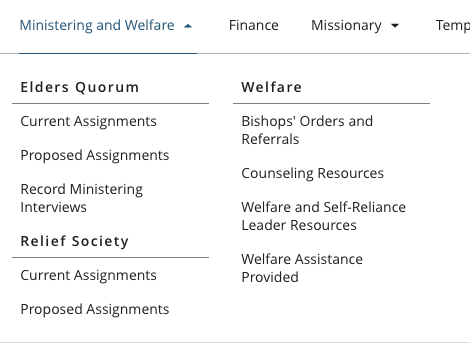
Open Ministering and Welfare → Elders Quorum → Current Assignments.
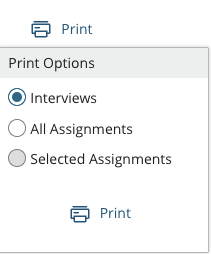
Click Print. Under Print Options choose Interviews, then Print and Save as PDF.
Important: Pick Interviews, not All Assignments. The Assignments layout is different and this tool can't read it yet.
Ministering and Welfare → Current AssignmentsPrint Options: choose Interviews
3
Download the Relief Society ministering report
Same steps, one menu down.
Open Ministering and Welfare → Relief Society → Current Assignments.
Click Print, choose Interviews, and save it as a PDF.
Tip: You now have three PDFs: the member list and one ministering report for each group.
Part 2 · Use the tool
From upload to a finished, printable set of assignments.
4
Log in and pick up where you left off
Click Sign in with Google at the top of this page. Access is by invitation, so use the Google account that was approved. Not approved yet? Email signup@wardministering.com.
Your work saves itself. After every change, the tool saves your uploads, edits and On Hold flags in this browser.
Come back any time. When you return you will see “Restored your last session”, with everything where you left it. No need to upload the PDFs again.
Signing in again is normal. After 6 hours without activity you are asked to sign in again. Your saved work is still there.
Log out (next to the session buttons) offers to save a session file first, then clears everything from this browser. Use it on a shared computer.
Save session file and Load session file sit in this bar under the upload panel
5
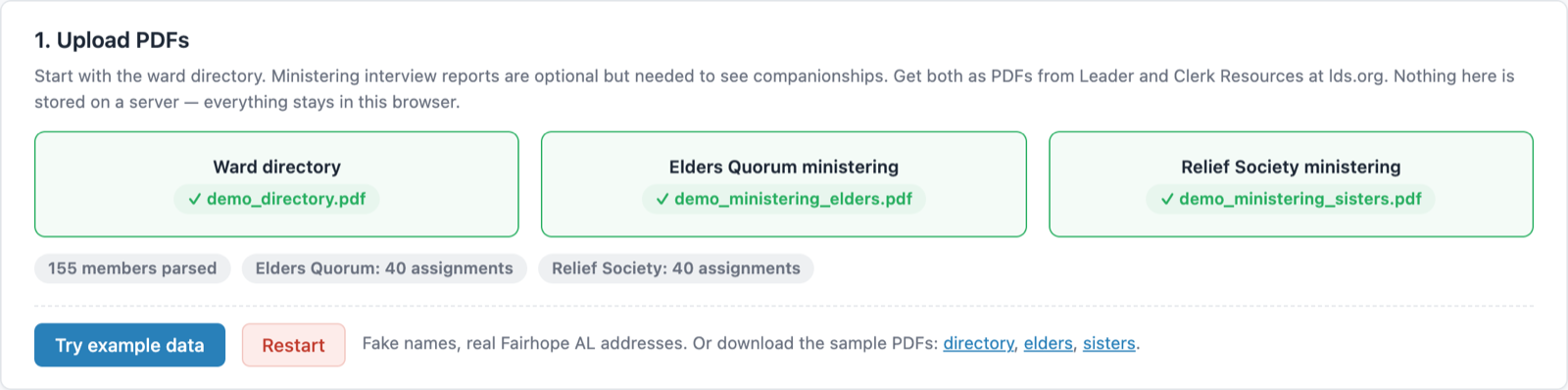
Upload your three PDFs
Sign in above, then drop each PDF onto its tile. Start with the member list.
The tool reads the PDFs, then looks up each address to place it on a map. Names, birth dates and edits stay in your browser.
Want to look around first? Try example data loads a fake ward.
Restart undoes every edit you make and goes back to the uploaded assignments.
6
Look at your ward on the map
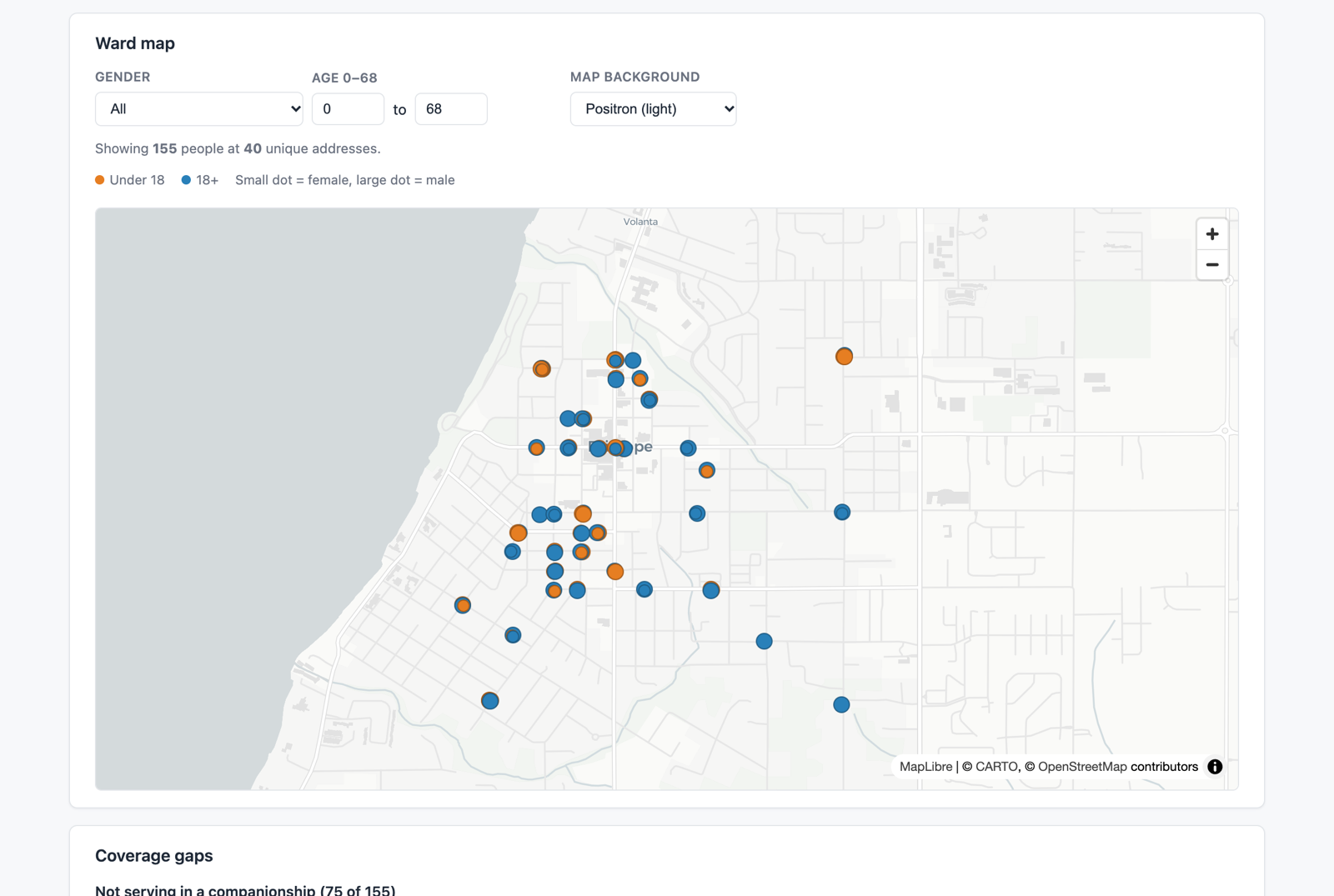
The Ward Map tab plots every address in the ward.
Filter by gender and age to see, for example, only youth or only single sisters.
Dots are colored by age group and sized by gender, so clusters and empty areas stand out.
7
Meet the edit board
Review and Edit Assignments is where you do most of your work.
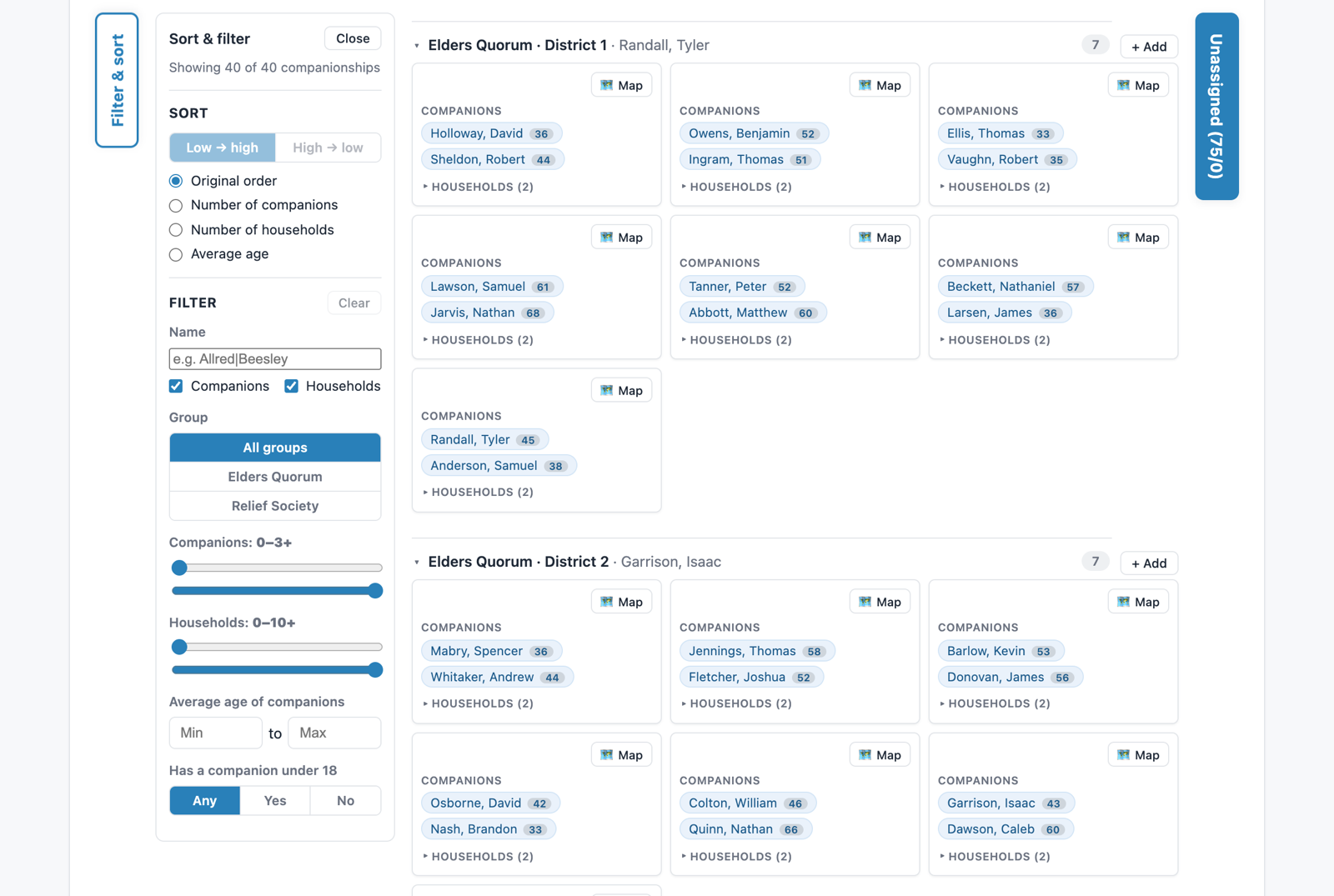
Companionships are grouped by district, with the presidency member beside each district name.
Each card is one companionship: the companions at the top (with their ages) and a Households list you can expand.
Map on a card shows just that companionship's companions and households.
Two tabs sit on the edges: Filter & sort on the left and Unassigned on the right. Click either to open or close it.
8
Filter companionships
Open the Filter & sort tab on the left edge. Everything under Filter narrows the cards you see.
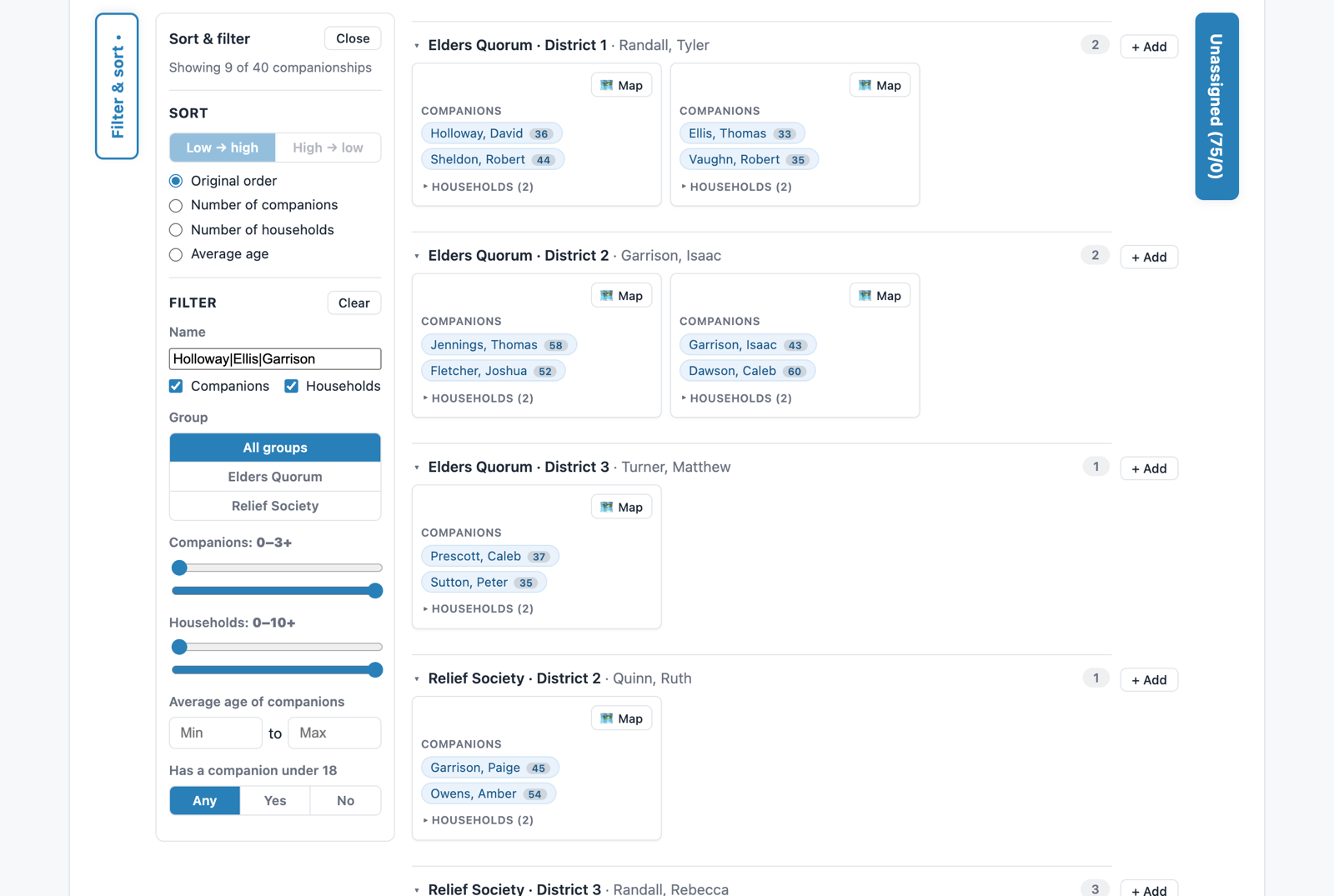
Name: type part of a name. Use | to look for several people at once, like Allred|Beesley|Smith. The checkboxes choose whether to search Companions, Households, or both.
Group: Elders Quorum, Relief Society, or both.
Companions and Households sliders: show only companionships with that many people or households. The top of each slider means “or more” (3+ and 10+).
Average age of the companions, and has a companion under 18 (Any, Yes or No).
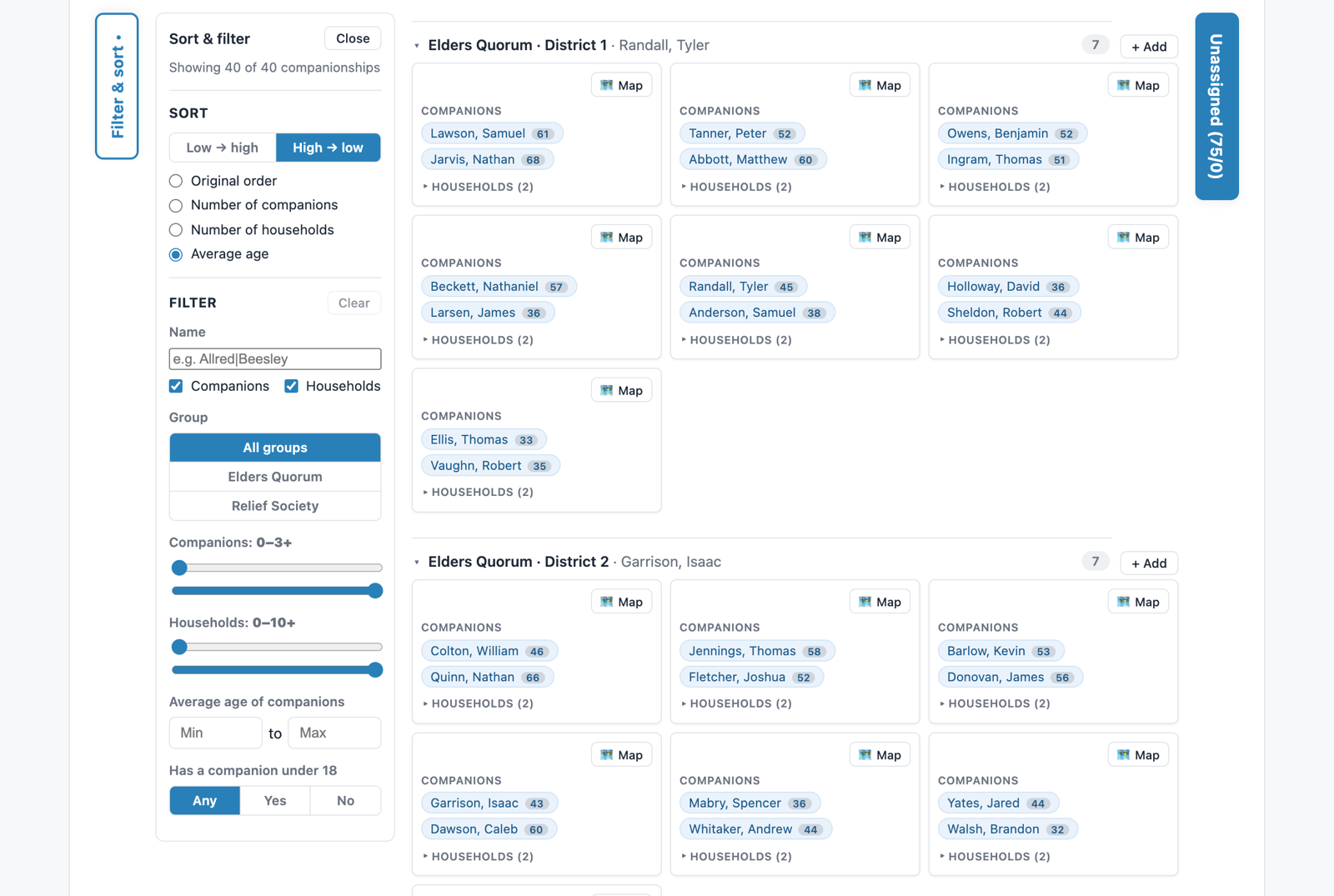
The line at the top says “Showing 9 of 40 companionships”. Clear resets the filters. A dot on the tab means something is filtering.
Tip: Companionships you have just added stay visible even if they don't match, so they don't vanish.
Searching three names at once
9
Sort companionships
Sort is at the top of the same panel, above the filters.
Choose Low → high or High → low first.
Then pick what to sort by: number of companions, number of households or average age.
Cards are sorted within each district. Original order puts them back the way the report listed them.
Average age, high to low
10
Move people and households
Moving is two clicks: pick it up, then choose where it goes.
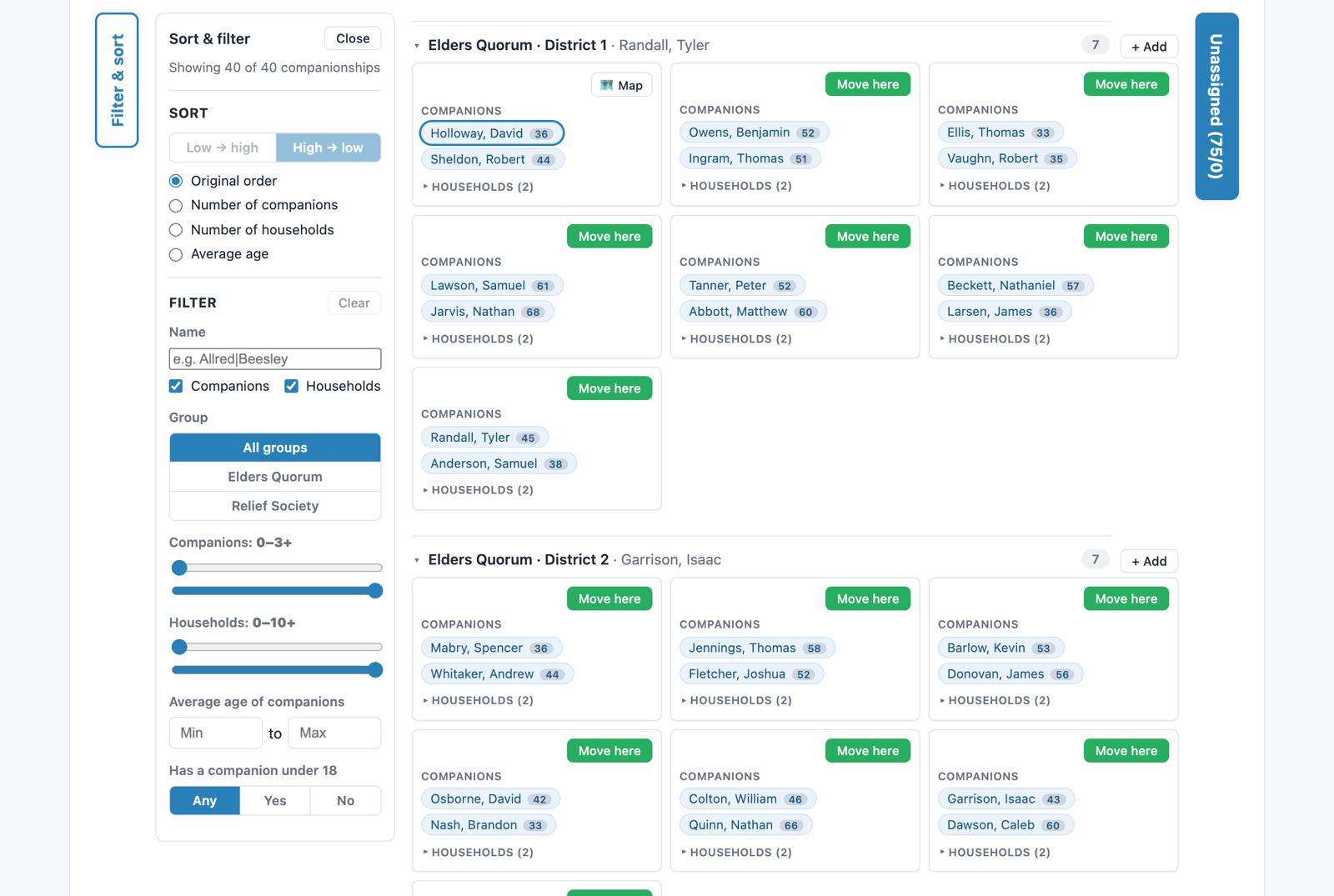
Click a name (a companion or a household). It gets an outline.
Every other card now shows a green Move here button. Click the one you want.
Changed your mind? Click the same name again to put it down.
To send someone back to Unassigned, open the Unassigned tab and click its Move here button.
To add or remove a whole companionship, see the next step.
A name is picked up; every other card offers Move here
11
Add and remove companionships
Need another pair of companions, or one that is no longer needed? Add an empty companionship and fill it, or remove one.
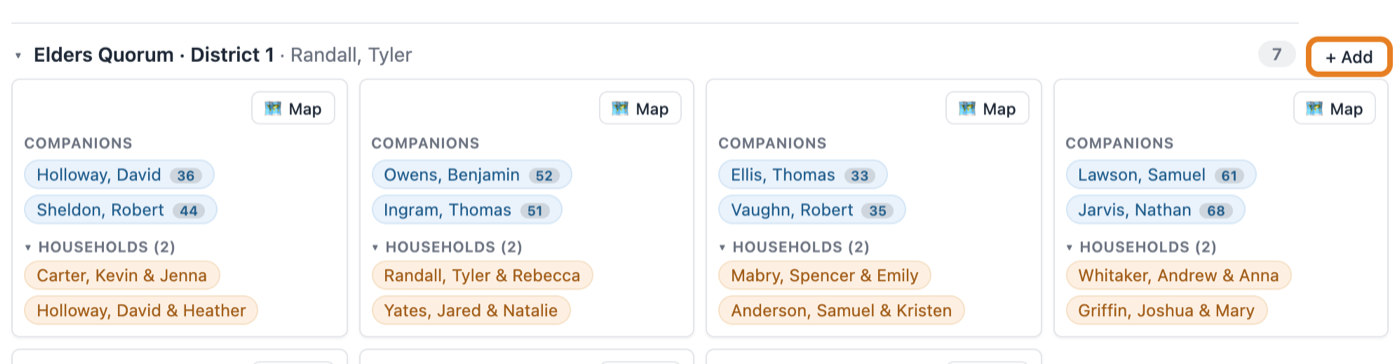
To add: find the district's heading, such as “Elders Quorum · District 1”.
Click + Add at the right end of the heading.
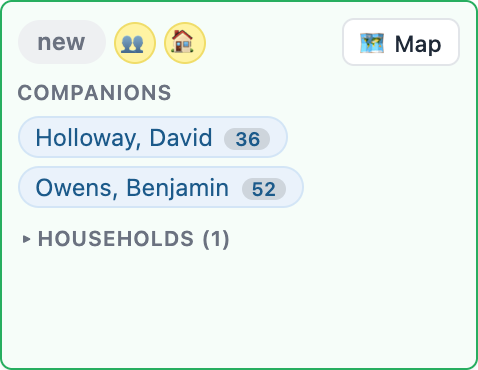
A green card marked new appears at the end of that district's cards. It starts empty and uses that district's presidency member.
Fill it: click a companion or household on another card, or in the Unassigned list, then click Move here on the new card. Repeat for each person and household.
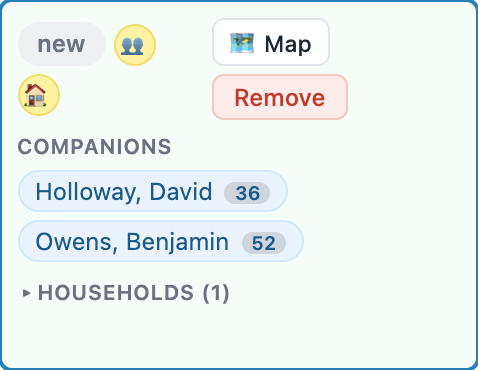
Tip: New cards stay visible even when a filter would hide them, so they don't vanish while you fill them. A companionship stays in the district where it was created, so click + Add on the right one. New companionships appear in the exported PDF, with their companions highlighted.
+ Add is at the right end of each district headingA new card after two companions and a household were moved inClick the card to select it; Remove appears
12
Read the change icons
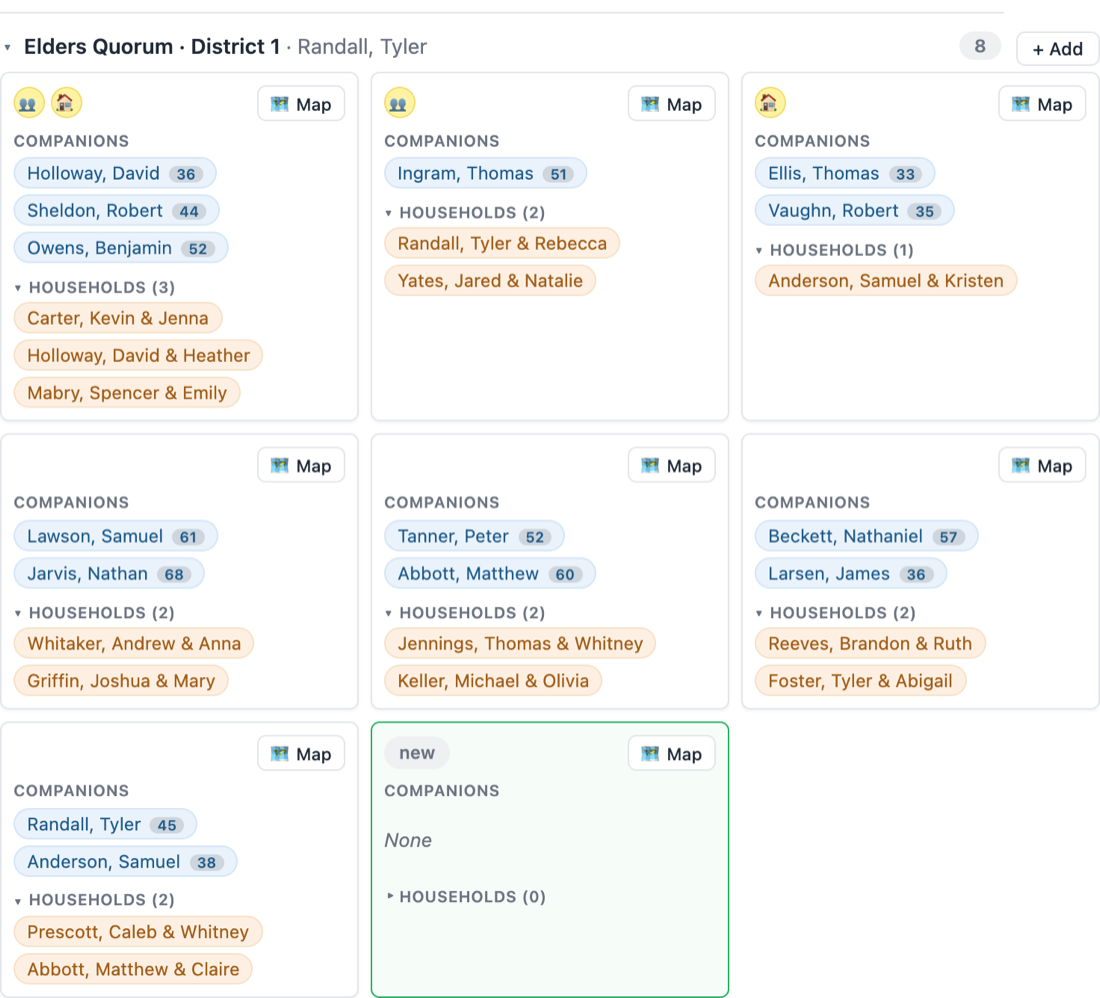
The board always shows what you have changed compared with the uploaded reports. Badges appear at the top left of a card.
👥 Yellow people badge: this companionship's companions are different from the original. Someone was moved in or out.
🏠 Yellow house badge: its households are different from the original. A household was moved in or out.
Both badges mean both changed. The card can show one, both or neither.
Green card marked “new”: a companionship you created.
Restart (7) in the upload panel counts your edits. Click it to undo them all.
The exported PDF highlights the same changes in yellow (see the export step).
Tip: In the example, a companion moved from the second card to the first (👥 on both), and a household moved from the third card to the first (🏠 on both). That is why the first card shows both badges.
First card: companions and households changed. Second: companions. Third: households. Green: new
13
Work the Unassigned list
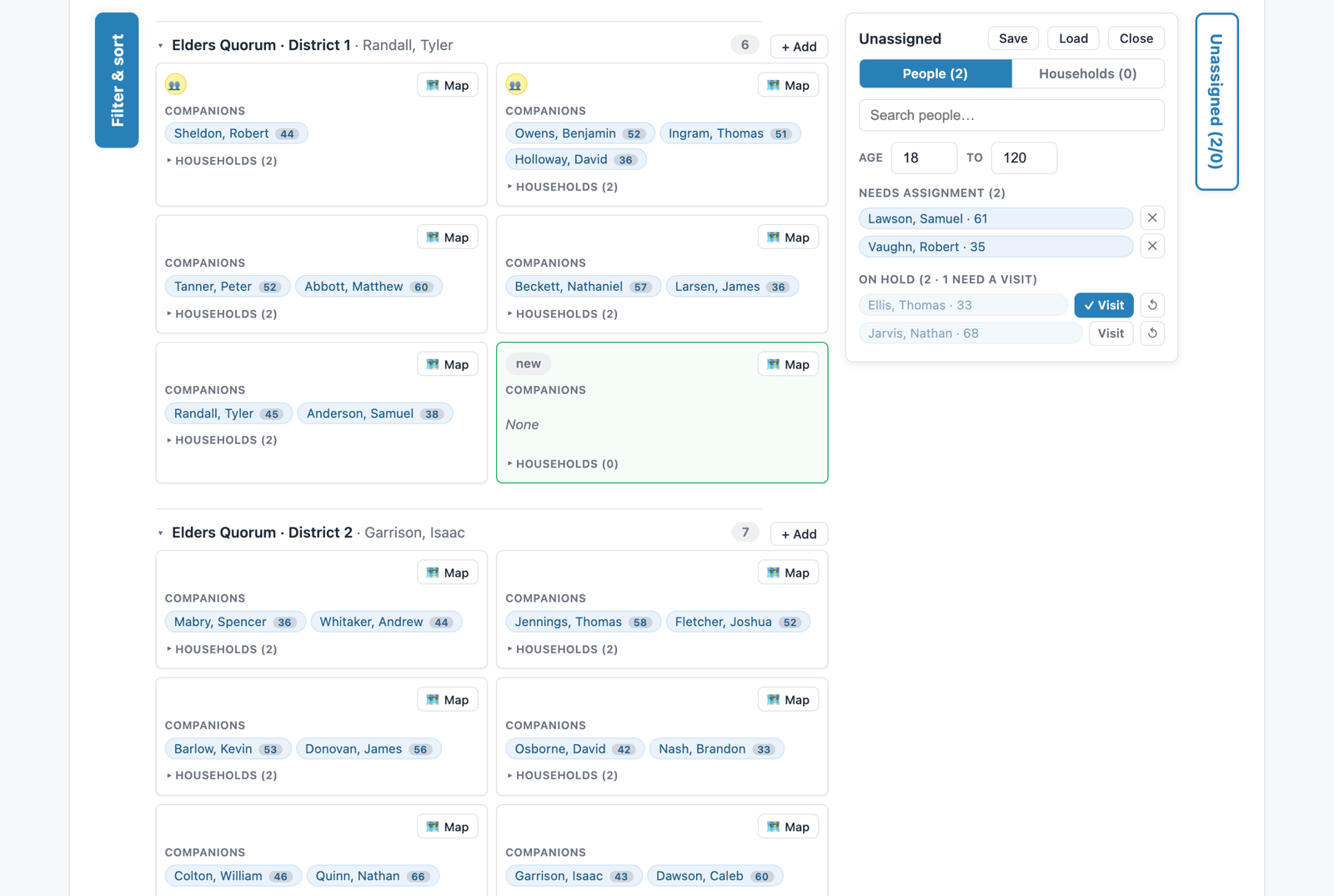
Click the blue Unassigned tab on the right edge. The numbers on it are people / households that still need an assignment.
Switch between People and Households. Search by name, and limit people by age.
Click a name to pick it up, then choose a card's Move here.
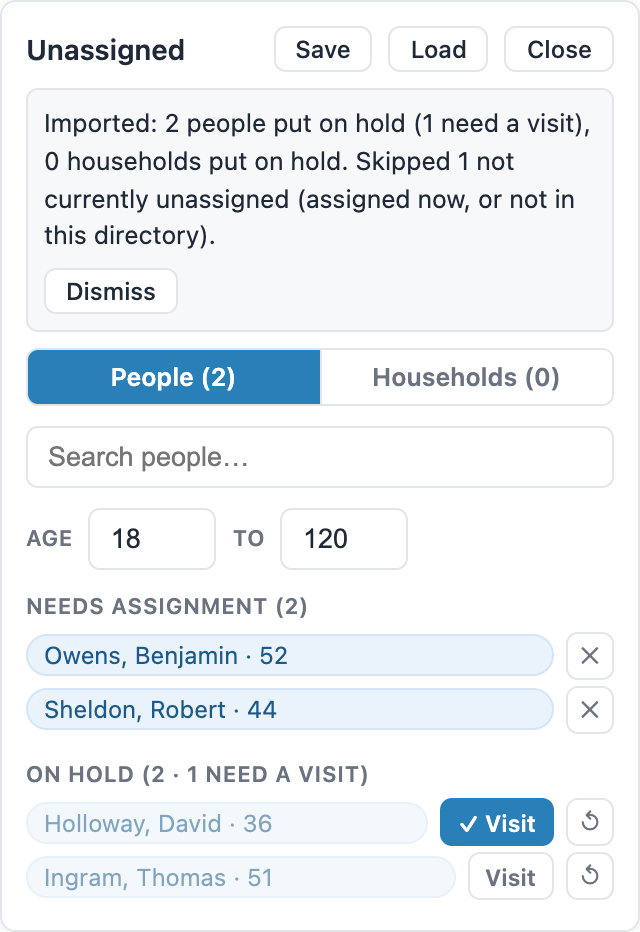
✕ puts someone On Hold: not ready for an assignment right now. They move to a separate section and the counts no longer include them.
On Hold people have a Visit button. Mark it to flag someone who needs a visit; they are listed on their own at the end of the exported PDF. ↺ returns them to the needs-assignment list.
Save writes your On Hold and Visit flags to a file, and Load puts them back. See the last step for using it with updated PDFs.
Needs assignment, On Hold, and Visit
14
Check coverage by district
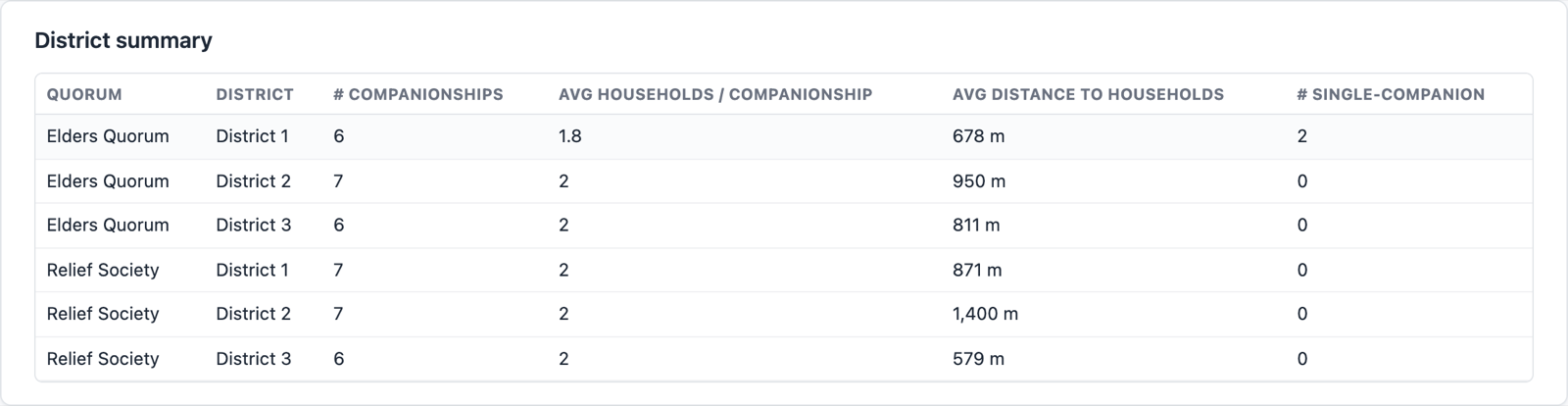
The Overview of Districts and Changes tab summarizes each district.
Companionships per district, average households per companionship, average distance to the households, and how many companionships have only one companion.
You can also map a whole district at once.
15
Export and save your work
When the assignments look right, download them.
Download PDF of edits makes a clean, printable PDF for each group (Elders Quorum or Relief Society).
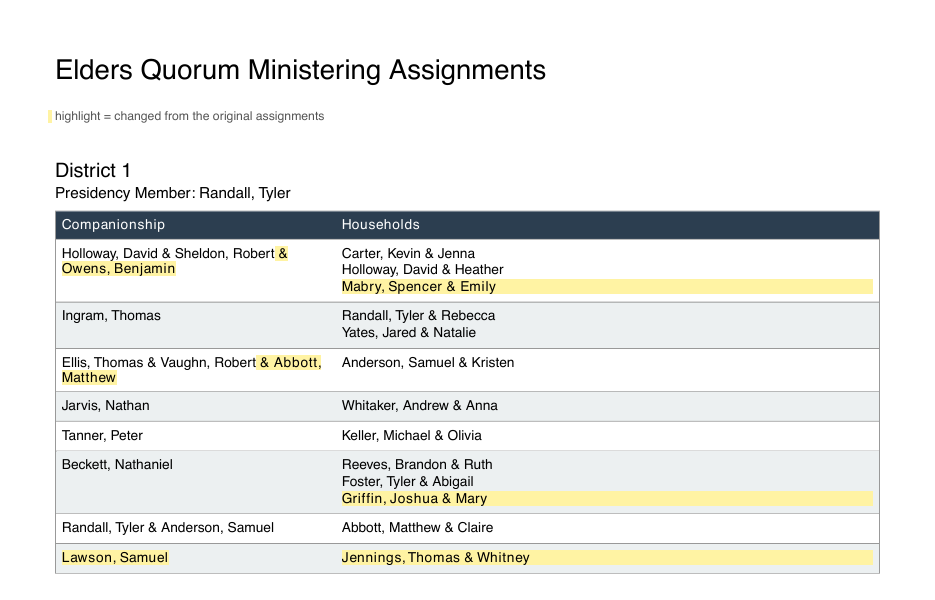
Yellow highlights mark everything you changed: companions who moved, households that moved, and the companions and households of a new companionship.
A legend at the top of the first page explains the highlight, and it only appears when something changed.
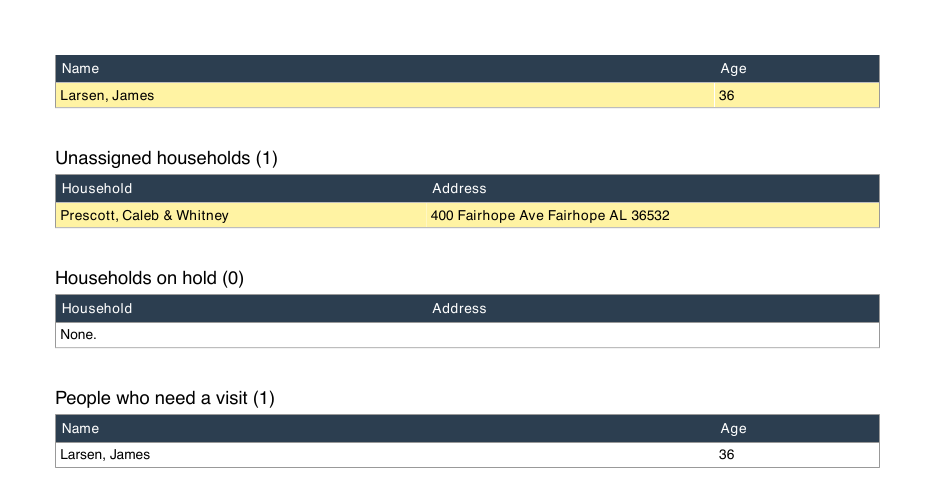
After the assignments comes an Unassigned section: people who need an assignment, people on hold, unassigned households and households on hold. Anyone you just took out of a companionship is highlighted there too.
The last list is People who need a visit: everyone you marked Visit in the Unassigned sidebar.
Your work saves automatically in this browser. To share it with another presidency member(or back it up), use Save session file; see the sign-in step.
Assignments: changed companions, households and a new companionship are highlightedUnassigned section: changes are highlighted, and the visit list comes last
16
Keep going when the PDFs change
Assignments change over time. An unassigned file lets you bring your On Hold and Visit decisions along to newer PDFs.
Before you update: open the Unassigned tab and click Save. It writes a small file listing who is On Hold, who is flagged Visit, and which households are On Hold.
Get the new PDFs (steps 1 to 3), click Restart to clear the old edits, and upload the new files.
Open the Unassigned tab and click Load. The tool looks up every saved name in the new data and puts each match back On Hold, with its Visit flag.
A message tells you what happened, such as “2 people put on hold (1 need a visit)”. Names that are now in a companionship, or are not in this member list, are skipped and counted.
Households match by their label, or by the same first person if the label changed (for example when a spouse's name was added).
Tip: Your companionship edits are not carried into new PDFs, because the new reports are the latest assignments. Use a session file if you want to keep edited companionships.
After Load: matched names are On Hold, and the message counts what was skipped
Ready to try it?
Sign in, upload your three PDFs, or explore with the built-in example ward first.